Increasing or Decreasing Existing Client Fees
To Increase or Decrease Fees for an existing client being Billed via the Prospera Fees Manager (DDR) system: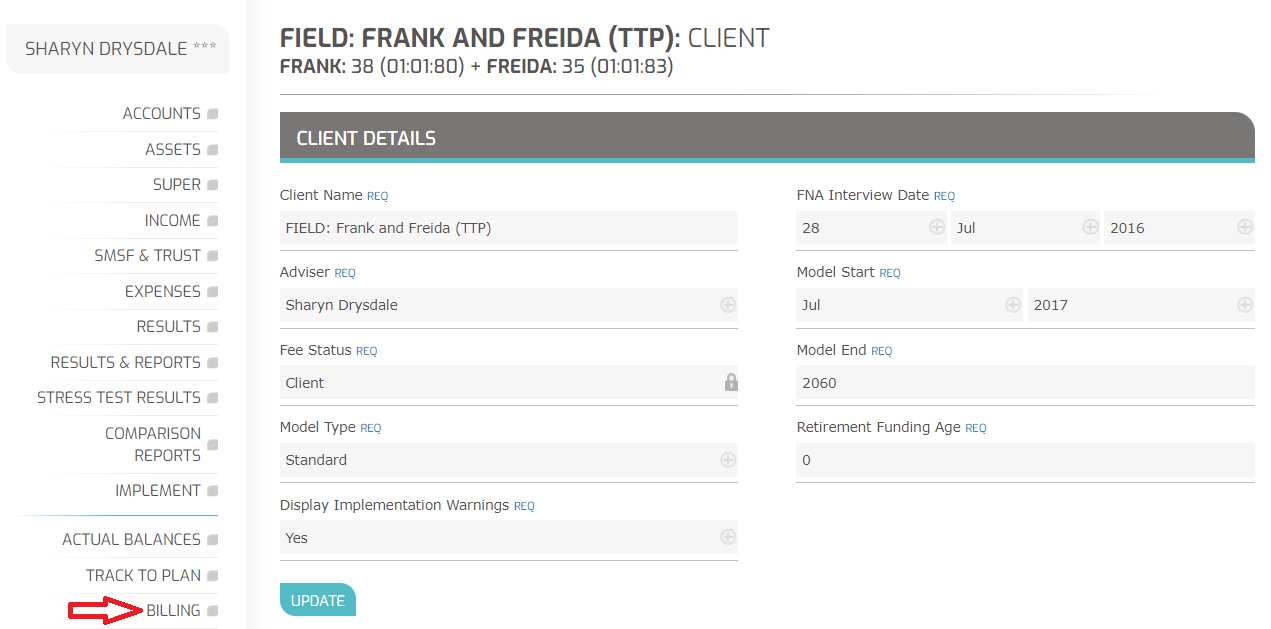


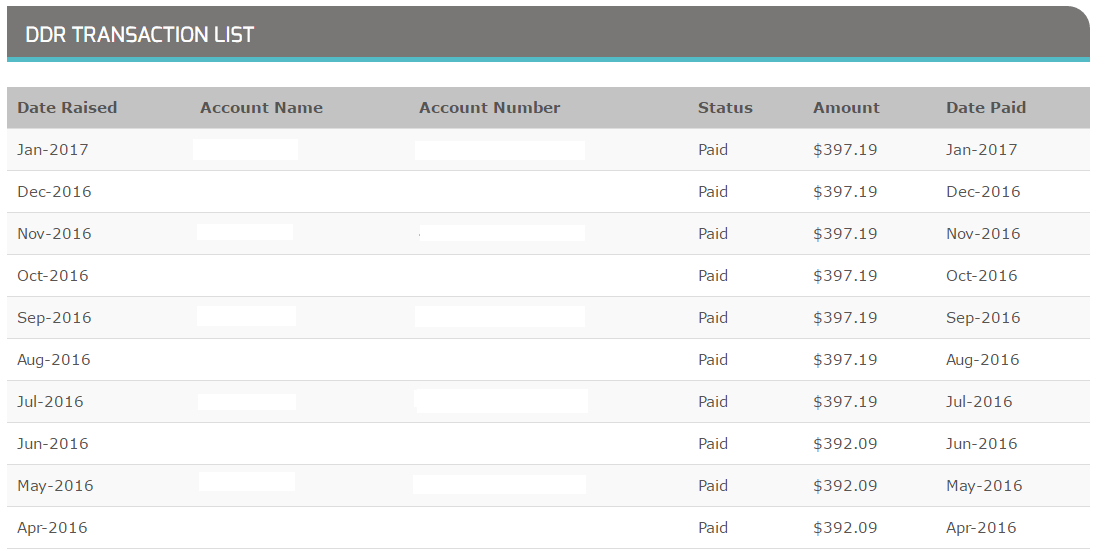
- Select the client from the Dashboard
- If they are currently billed via the Prospera Fees Manager application, the sidebar menu will have a Menu item called BILLING
- Click on the BILLING link. This will open a new menu incorporating all screens in relation to Billing.
- Select BILLING RECORDS
- Select the record you wish to amend by clicking on that record.
- You will now be placed in the "Edit Billing Record" screen, as shown below.
- The current amount you are billing is locked, and cannot be altered.
- Go to the field called "New Amount" (in the right-hand column)
- Enter the new billing amount for this client.
- Click UPDATE.
You can come back to this record to confirm the changes have been made.
You can also see the History for this record by selecting the History Icon. The History lets you see what the fee was before you changed it.
NOTE: By modifying client fees in this manner, the new amount of the adjusted fee is not included in the modelling. To incorporate the fee into the modelling, you should remodel the client with the new fee, and implement the remodel.